A closer look at Kaboosh
Features
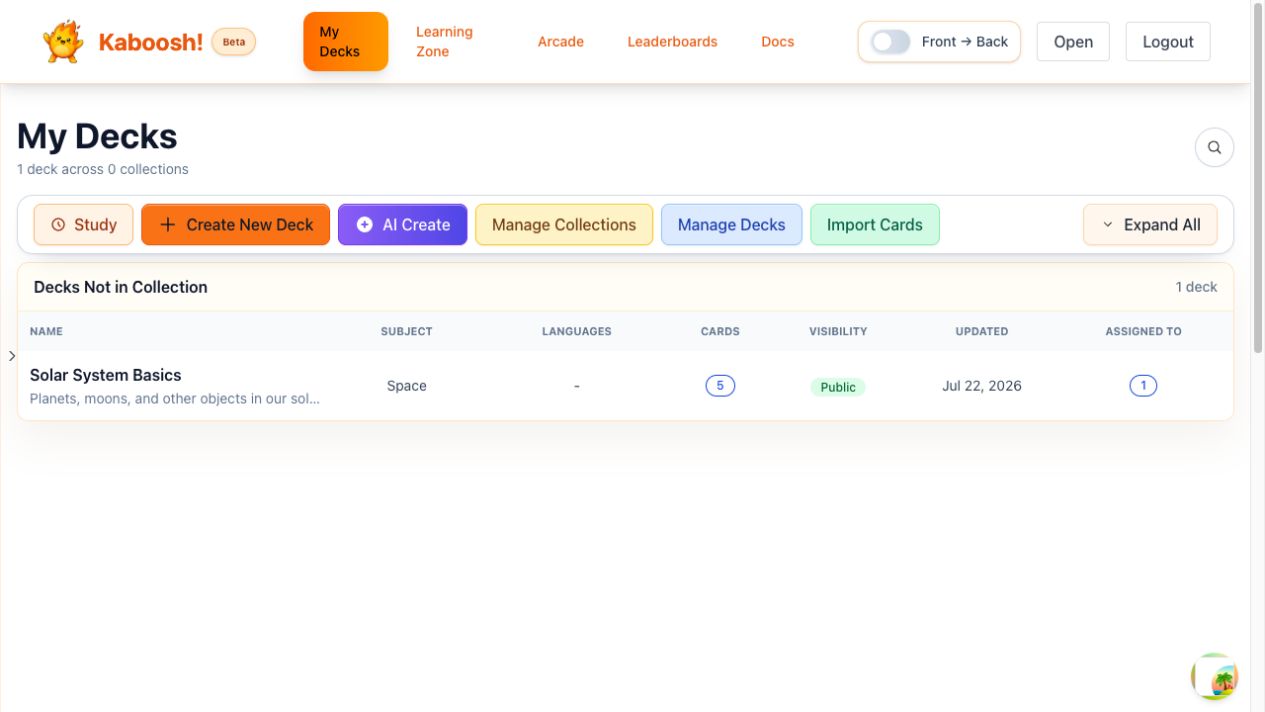
Create or import a deck, practice it in more than 20 ways, assign it, teach with it, schedule reviews, and track what changes.
01 · Create and manage content
Build a deck once. Keep it useful.
Create cards manually, generate a draft with AI, import existing material, then organize, edit, and share it.
Manual and AI-assisted creation
Set the deck type, subject, language, and study settings yourself, or generate an editable first draft with AI.
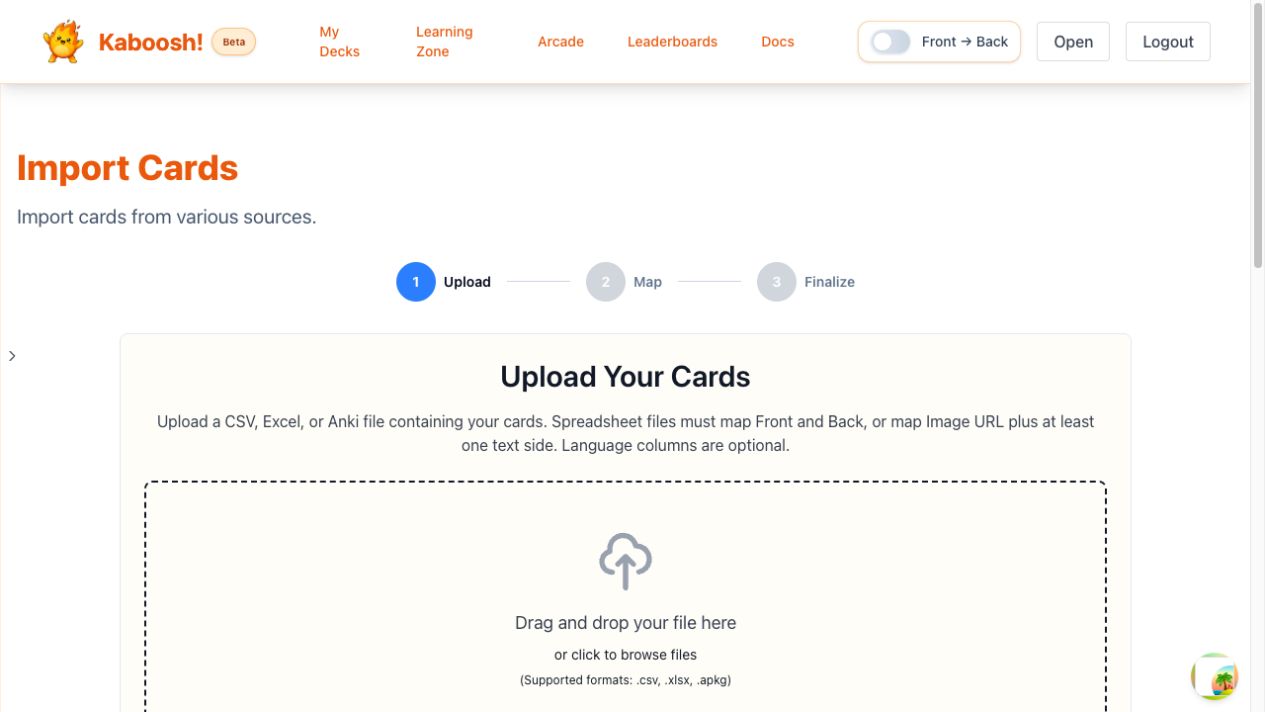
CSV, Excel, and Anki import
Bring in existing cards, map front and back fields, and include images or language columns when you need them.
Collections, tags, search, and sharing
Keep a growing library manageable, choose public or private visibility, and share useful decks.
A public deck library
Find material by subject, language, tags, or age group, then compare ratings, endorsements, copies, and study activity.
02 · Learning activities
Choose the practice the answer needs
The Learning Zone groups activities by purpose, so a deck can move from recognition to recall instead of becoming a random list of games.
Study and recall
Study Now (Auto), Flashcards, Type It, Speak It, and Concept Test move from guided review to an answer you produce.
Match and choose
Memory Match, Match All, Multiple Choice, Two Choice, and Listening MCQ build recognition in different ways.
Build words and sentences
Anagram, Word Parts, Block Builder, Word Search, Crossword, Fill in the Blank, and Sentence Builder make recall more open.
Fast and arcade practice
Whack Match, Fruit Slice, Asteroid Type, Fish Frenzy, Plinko Power, and Tower Defense add speed and movement without losing the answer task.
One deck can serve different learning goals
Choose one deck, then select guided study, matching, answer building, or fast practice as the learner moves from recognition toward independent recall.
03 · Spaced review
Review the right cards at the right time
Smart Tracking keeps a due queue for each deck and uses review responses to decide what should return next.
A clear due-review queue
See the number of cards due, which decks need attention, and an estimated session time before you begin.
Response-based scheduling
Future review changes with the learner response instead of giving every card the same interval.
Forward and reverse reviews
Practice both directions when recognition and production need separate attention.
Separate language skills
Language decks can track reading, writing, listening, and speaking progress separately.
Every answer changes the next review
When a card is due, try the answer and choose Again, Hard, Good, or Easy. Kaboosh schedules the next review and returns the card when it is due again.
04 · Teaching and assignments
Teach live, assign work, and follow it up
Use the same content for a class activity, independent homework, uploaded work, written responses, and later review.
Classes, students, and decks
Create classes, manage student accounts, and control which decks are available to each group.
Flexible homework
Assign a Kaboosh activity, upload a worksheet or resource, or write the task directly, with students and deadlines attached.
Teacher-led and selected live activities
Lead practice from the front of the room and use join codes with supported live activities.
PDFs, printables, feedback, and reports
Teach from PDFs, build printable worksheets, review writing, and check completion and progress reports.
From content to class follow-up
A teacher chooses content, selects an activity and settings, and assigns learners and a deadline. Learners open the task and practice or submit work. The teacher then checks completion, feedback, and progress.
05 · Progress and motivation
See what is due, improving, or slipping
Progress stays attached to the cards and activities, giving learners a next step and teachers a clearer follow-up.
A practical learner dashboard
See XP, total decks and cards, due reviews, and material that needs extra work at a glance.
Activity, accuracy, and time
Track reviews per day, correct-answer ratio, study time, and recent activity, with report export where available.
Goals, streaks, XP, and achievements
Use visible goals, badges, achievements, points, and streaks to make steady practice easier to sustain.
Teacher progress and leaderboards
Review learner and deck progress, then filter class leaderboards by class or assigned deck.
Practice signals become a next step
Accuracy, study time, due cards, and recent activity feed the progress view, which highlights what to review next, what needs work, and current goals or streaks.
06 · Language and media tools
Make cards visual, audible, and speakable
Add the context a learner needs without forcing every subject or language into plain front-and-back text.
Languages, translation, and transliteration
Label deck languages, translate supported card content, and add readable transliteration where it helps.
Images, GIFs, and uploads
Search for a visual, upload your own image, or use animated media to make meaning clearer.
Text-to-speech and custom audio
Hear prompts and answers aloud, or attach recorded audio when the exact voice or sound matters.
Speech recognition and pronunciation feedback
Answer aloud in speaking activities and receive feedback where speech recognition is supported.
Build the support into the card
Combine text and translation, an image or GIF, audio, and a speaking check in one card so learners can see, hear, and say the answer.
Availability
Start free. Add the tools you actually need.
Core deck creation and study are available free. Advanced imports, assignments, reports, GIF search, AI, and speech or audio tools vary by plan.